

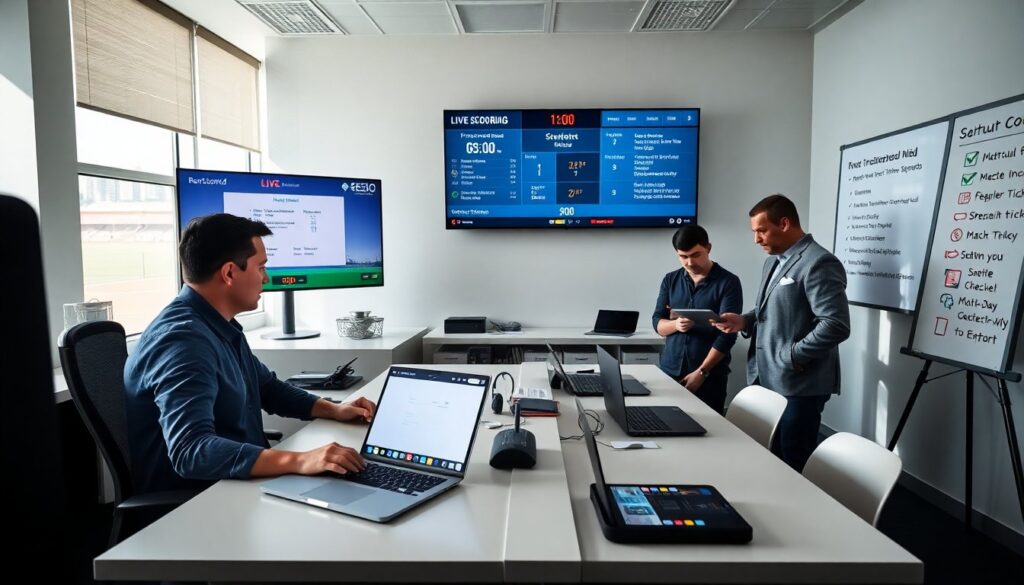
Start fumbleboard as a clear first step for new users. The guide shows how they set up an account, build a board, and run a match quickly. It explains key settings, permissions, and common match actions. It assumes readers want speed and simplicity. It avoids jargon and gives direct steps. It helps teams go live fast with minimal setup.
Key Takeaways
- Starting with Fumbleboard is quick and straightforward, ideal for new users who want to set up live scoring with speed and minimal complexity.
- Fumbleboard serves teams, officials, and event organizers by providing real-time tracking of plays, players, and scores across casual and official events.
- Creating an account and building a customized board involves simple steps like choosing a sport template, editing team details, and setting scoring rules for a personalized experience.
- Assigning player roles and setting permissions ensures smooth collaboration with teammates and officials while maintaining control over live updates and edits.
- During matches, operators use core features such as live scoring, clock management, and quick actions for substitutions and fouls to keep games accurate and engaging.
- Regular testing, backups, and familiarization with troubleshooting tips help avoid disruptions and improve reliability on game day.
What Is Fumbleboard And Who Should Use It?
Fumbleboard is a live scoring and game-management tool. It tracks plays, players, and scores in real time. Teams use it for casual leagues, tournaments, and practice sessions. Officials use it to record official results. Organizers use it to publish live updates and stats. New users read this guide to start with fumbleboard fast. Coaches use it to keep rosters and substitutions clear. Event staff use it to share results with fans.
Create Your First Account And Board
The user opens the signup page and creates an account. They enter name, email, and password. The system sends a verification email. The user confirms the email and signs in. They click New Board and choose a sport and league type. The user names the board and sets date and time. The app saves the board and shows a setup walkthrough. The user can edit board details at any time.
Choosing A Template And Customizing Your Board
The user picks a template that matches the game format. Templates provide default fields, timers, and score displays. The user edits team names, colors, and logos. They add custom fields for notes or sponsorships. The user sets the clock format and scoring rules. The editor shows a live preview. The user tests the preview and saves changes. This step helps them tailor the visual layout quickly.
Set Up Players, Teams, And Permissions
The organizer uploads a roster or adds players manually. They assign players to teams and set jersey numbers. The organizer marks starters and substitutes. They upload photos and player bios if needed. The organizer invites teammates and officials by email. They assign roles: admin, scorer, and viewer. The admin sets permissions for edits and live updates. The system logs each change and timestamps it for audit.
Gameplay Flow And Core Features
The operator opens the live board when the match begins. They start the clock and record plays as they happen. The app updates score, time, and player stats instantly. The operator uses quick-action buttons for fouls, timeouts, and substitutions. The system offers undo and edit functions for mistakes. The app streams a ticker for spectators and publishes final box scores. The operator can pause the clock and resume with one tap.
Match-Day Checklist And Common Actions
Before kickoff the operator confirms rosters and roles. They verify clock settings and scoring rules. They test the live feed and confirm mobile connectivity. During the match they log scoring plays and record penalties. They use substitution controls for player changes. They note timeouts and injury delays. They correct entry errors with the edit tool. After the match they finalize the board and export stats to CSV.
Tips, Troubleshooting, And Next Steps
They test the board before each match to avoid surprises. They keep a backup device charged and ready. If the clock stalls they refresh the session and re-sync with the server. If a stat looks wrong they use the edit log to trace the entry. They contact support with a timestamped screenshot when needed. They schedule regular exports to back up data. They explore integrations for streaming and league management to expand use.